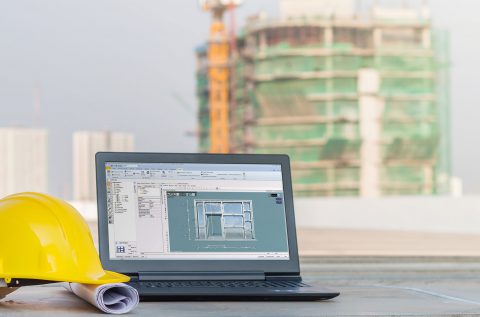

SPIRIT 2012 is here!


New Residence, CT- © JWM Architects

Overview

 Detailed list of new features in SPIRIT 2012

The focus of this upgrade is to introduce the new dynamic input modes which facilitate the process of inputting distances and angles. In addition, enhancements have been made to other areas of the application that greatly reduce the time required to complete the task at hand as well as increase the legibility of your drawings. The quality of rendered models has been vastly improved with the introduction of global illumination in Fresco II (lightwork rendering engine).  

Dynamic Input

With the introduction of the dynamic input modes, new and casual users of Spirit will delight in the ease with which they can now generate their drawings. Instead of having to focus on multiple areas of the screen in order to input data, they can now focus solely on the drawing cursor. Dynamic input is not only useful for the purposes of aiding drawing operations, but also as a design tool. The ability to lock one of the coordinates of a rectangle and then freely draw the other coordinate, or lock the length of a line/wall and then freely determine its orientation afford design possibilities not previously possible. In combination with dynamic help lines and magnetic snaps, dynamic input completes a scenario of the most robust drawing aid toolset on the market today.


New Residence, CT - ? JWM Architects

Productivity

Dynamic Input


When entering distances or angles in Spirit, it has always been necessary to relocate the focus away from the position of the cursor and input the data in the infobar. With dynamic input, this is no longer necessary as the input fields for the data is right at the cursor. An additional benefit of dynamic input, is that you no longer have to input a - sign for negative values. The distance and angle values displayed are always related to the direction and angle of the cursor from the previously selected point and are always measured as positive values.  

To begin using dynamic input, you must choose between either the dynamic polar or dynamic cartesian input modes. You can select an option from the input drop-down list on the context toolbar, selecting one of the dynamic options from the tools pull-down menu or by pressing the Insert key until the dynamic mode required is shown as the active input mode on the infobar.

 Now simply pick the start point anywhere on screen and as you move the cursor, a positive realtime distance and angle value from the start point will be shown alongside the cursor. The distance or x-value is always the first value to be entered. You can simply type in the desired distance but DO NOT press the Enter key! Pressing the enter key will input the element drawn with the distance you entered and the current angle shown, which may not be the desired result. Instead, press the tab key to move the focus from the distance entry to the angle enter (y-value for dynamic cartesian input mode). After  pressing the tab key, the distance entered for the element drawn is now locked. You can then freely orient the element on screen or type in the desired angle or y-value. Complete the operation by pressing the enter key. If you wish to revert to modifying the distance, you can simply press the tab key once again.

If you use the supersnap function in conjuntion with dynamic input, it will no longer be necessary to use the reference pt operation to locate an element a specified distance away from another element. This is very useful for inserting openings a specified distance from a wall corner or from another opening.

The settings for dynamic input can be found in the Program Preferences dialog.


Dynamic Boundaries

When constructing boundaries for any type of enclosure using Contour Search, you can now activate the new Dynamic option. With Dynamic active, moving of the cursor over any enclosure in the drawing will result in an immediate preview of the enclosure to be generated. The boundary is generated when picking with the left mouse button. This can be used to great effect when hatching elevations, sections or floor plans. Additional options for Dynamic include the automatic recognition of voids and columns, so openings are cut out automatically in the generated hatch. Dynamic boundaries can also be used to great effect when doing take-offs, as the area of enclosures will be shown on screen when "show area value" has been activated. 


Modify Polyline Voids

You can now dynamically edit the boundary of a polyline void. In previous versions it would have been necessary to first convert the void back into a regular polyline, edit the polyline and then recreate the void.  This enhancement itself, is a huge time saver.


New Residence, CT - ? JWM Architects

Presentation

Background Mask

A new property (background mask) has been added to a number of Spirit elements (text, dimension strings and references) that when activated, will mask the information behind this element to make drawings more legible. It is important to note that layer order plays an important role in determining which elements will be hidden with background mask. You can activate the background mask property by selecting the element/s in the drawing and then setting the property in the object inspector to "Yes".  

It is obvious how much more legible the image below right is with background mask on compared to the image on the left with background mask off. 


Global Illumination

Spirit 2012 introduces global illumination, which produces far more relatistic lighting conditions than previous versions. Lighting shaders have been added that support indirect illumination which takes into consideration light rays reflected by other surfaces in the scene. Although computational time is increased for global illumination, the end result far outweighs the increased expense in time. For exterior renderings, the new light shaders include a Sky shader and a simple sky shader. For interior renderings using global illumination, no additional light shaders are required, as Spirit will calculate the indirect light automatically when outputting to global illumination.


New Residence, CT - © JWM Architects

Q & A

What are the system requirements for SPIRIT 2010?

Minimum specs are as follows: Pentium IV 2.5GHz or faster cpu, 2GB ram, min 500MB free hard drive space, Windows XP SP3, OpenGl graphics card with min 128MB ram.

Recommended specs are as follows: Intel Core 2 duo 2.0 GHz or faster, min 2GB ram (4GB windows 7), 1GB free hard drive space, Windows XP SP3, Windows Vista or Windows 7 (32bit/64bit), OpenGl capable graphics card with min 512MB ram (no shared memory).


New Residence, CT - © JWM Architects

Any 10 Day Trial

Download the latest SPIRIT version and take it for a test drive.

SPIRIT 2010 Any 10 Day Trial Download


Award winning Architects use SPIRIT

2009 Winner national competition for Starter Homes

S3 Architects is a design focused architectural practice based in Auckland. We believe that good design can inspire building users as well as making the best use of the clients construction dollar. We work mainly in the housing and education sectors and enjoy the challenge of producing good design outcomes by finding innovative design solutions that can fit within the constraints of the given budget and timeframe. 

Review winning submission here


NEWS

2009.07.27

New Harristone seamless texture library and drawing styles for SPIRIT 2009 now available to all active CM members. Log on to the CM Portal and select Textures. 

2009.07.17

New ZAC Component Library for SPIRIT 2009 (over 700 components) now available to all active CM members. Log on to the CM Portal and select Symbols 2D /3D.

2009.07.17

Migrating custom user files to SPIRIT 2009 - see how

2009.07.15

Follow SPIRIT on Twitter www.twitter.com/stspirit

2009.07.15

SPIRIT 2009 shortcut key command codes uploaded to Knowledge Base.
Review Now!

2009.07.07

Release of SPIRIT 2009 International

UPDATE: 11/12/28
BUILDING·INFORMATION·NETWORK